 PixPin
Appearance
Serial Number Annotation
Serial number annotation can annotate sequences in the image, which is very useful for scenarios that need to indicate operation order, path, chronological order, etc.
Usage
- Click the serial number annotation button in the toolbar.
- Click the left mouse button on the image to create a serial number.
- Click the left mouse button in a new place to create the next serial number.
Tool Interface
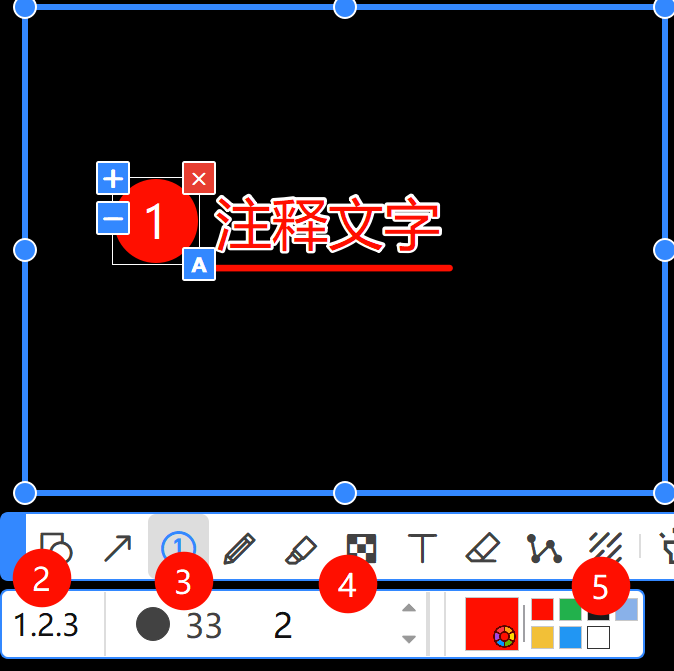
- Serial Number Control Buttons
+: Increase serial number-: Decrease serial number×: Clear serial numberA: Add text comment (Shortcut is A key)
- Serial Number Type: Supports numbers, letters, Roman numerals
- Numbers: 1, 2, 3, 4, 5, 6, 7, 8, 9, 10...
- Letters: A, B, C, D, E, F, G, H, I, J...
- Roman Numerals: I, II, III, IV, V, VI, VII, VIII, IX, X...
- Serial Number Size, can be controlled by the mouse wheel
- Set the next new serial number
- Serial Number Color
TIP
When creating a new serial number, you can hold and drag the mouse. At this time, the serial number will extend an arrow as an indicator.